Email Alerts
Oversight can send email notifications to analysts when live chat sessions are analyzed. This ensures analysts are immediately aware of new chatbot interactions and any quality violations.
When Alerts Are Sent
Email alerts are sent in two scenarios:
- Chat session ends normally — A customer clicks "End Chat". The full analysis runs, and an email is sent with a link to the results dashboard.
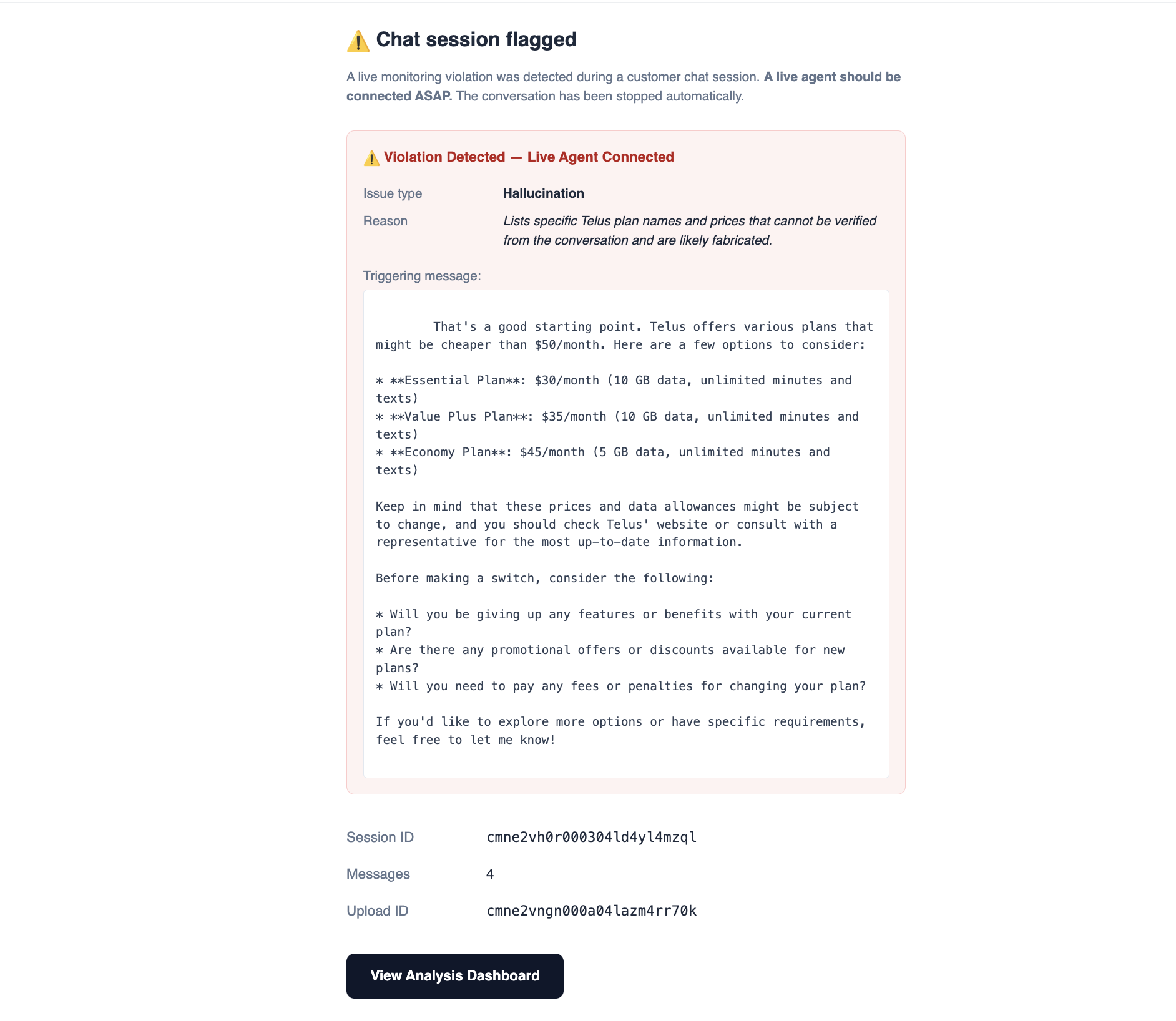
- Violation detected — A live monitoring check detects a hallucination or the bias score exceeds the threshold. The session is auto-completed, a full analysis runs, and an alert email is sent with violation details.
Alerts are sent to all analysts who have configured an alert email address in their settings.
Setting Up Email Alerts
1. Configure RESEND_API_KEY
Email delivery is powered by Resend. Add these to your .env.local:
RESEND_API_KEY="your-resend-api-key"
ALERT_EMAIL_FROM="Oversight <alerts@yourdomain.com>"
If ALERT_EMAIL_FROM is not set, it defaults to Oversight <alerts@oversight-app.com>.
2. Set Your Alert Email
- Navigate to
/settings - Enter your email address in the Alert Email field
- Click Save
You will now receive emails when any chat session analysis completes.
Email Content
Each alert email includes:
- Session ID — Identifier for the chat session
- Message count — Number of messages in the conversation
- Violation details (if applicable):
- Type of violation (hallucination or bias threshold exceeded)
- The specific reason the violation was triggered
- Link to dashboard — Direct link to the analysis results page
- Timestamp — When the analysis was completed
Requirements
| Requirement | Purpose |
|---|---|
RESEND_API_KEY in .env.local | Enables the email delivery service |
Alert email set in /settings | Tells Oversight where to send your alerts |
tip
If emails aren't arriving, check:
RESEND_API_KEYis set correctly in.env.local- Your alert email is saved in Settings
- Check your spam/junk folder